

Getting Started
You can be up and running with Focus Meter in under five minutes. Here's what to expect. If you want the wider measurement model first, start with the complete guide to focus tracking on Mac, then come back here for the product walkthrough.
What Happens on First Launch
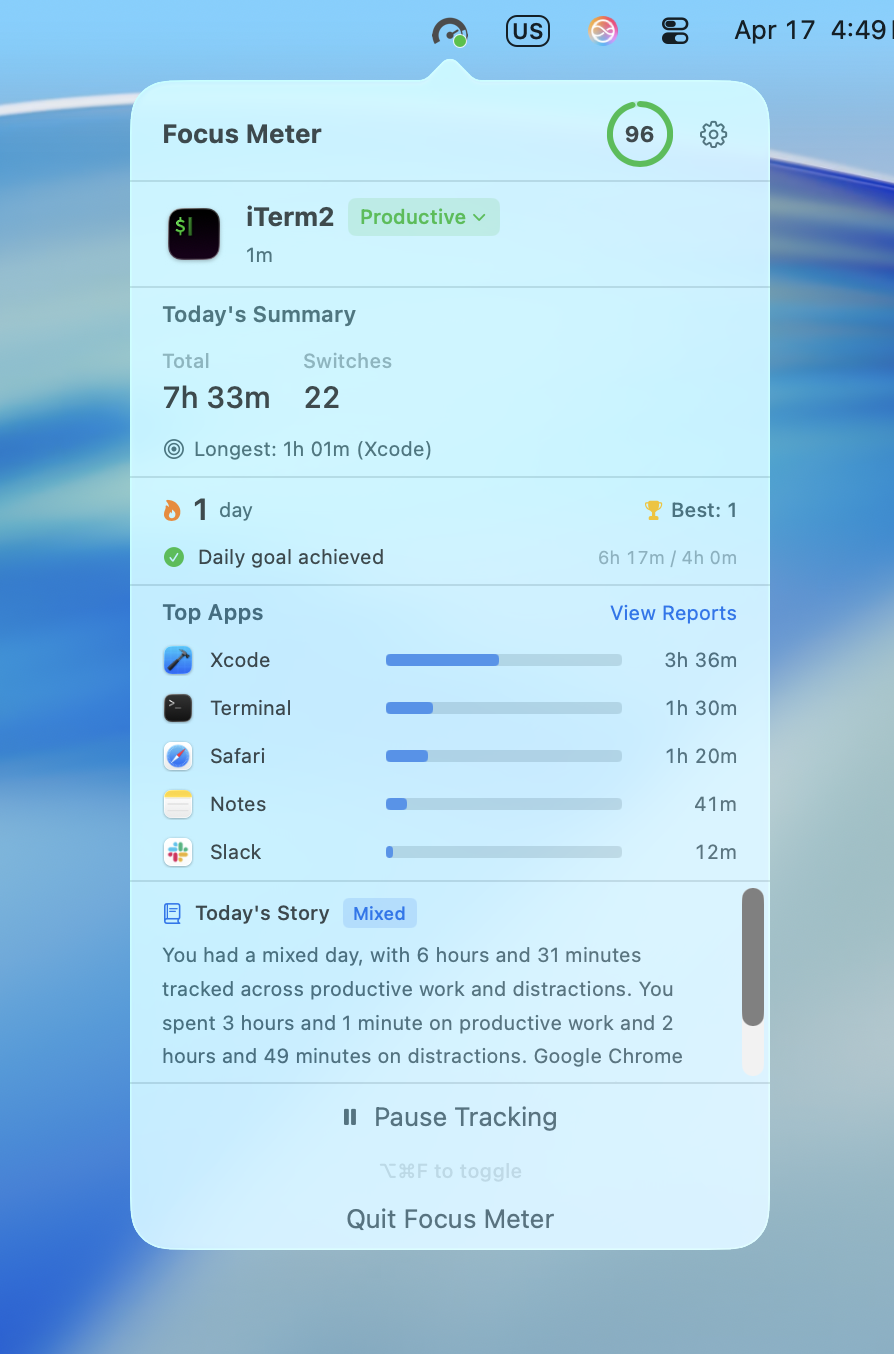
When you open Focus Meter for the first time, two things happen:
- A small icon appears in your menu bar (top-right of your screen, near the clock). This is where Focus Meter lives. It's a menu bar app, so there's no Dock icon or main window.
- A short welcome screen walks you through what Focus Meter does: automatic tracking, Focus Score, reports, and local-only privacy. Click Get Started to dismiss it.
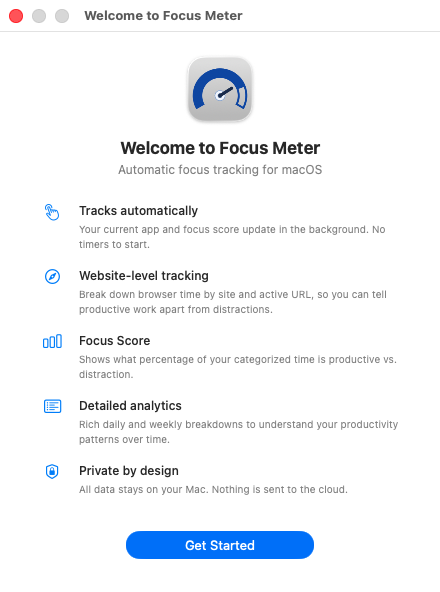
That's it. Focus Meter is now tracking which app is in the foreground on your Mac. The dashboard guide explains what appears in the menu bar popover once data starts flowing.
Your First 10 Minutes
You don't need to configure anything. Just use your Mac like you normally would: write emails, browse the web, work in your editor, whatever your day looks like.
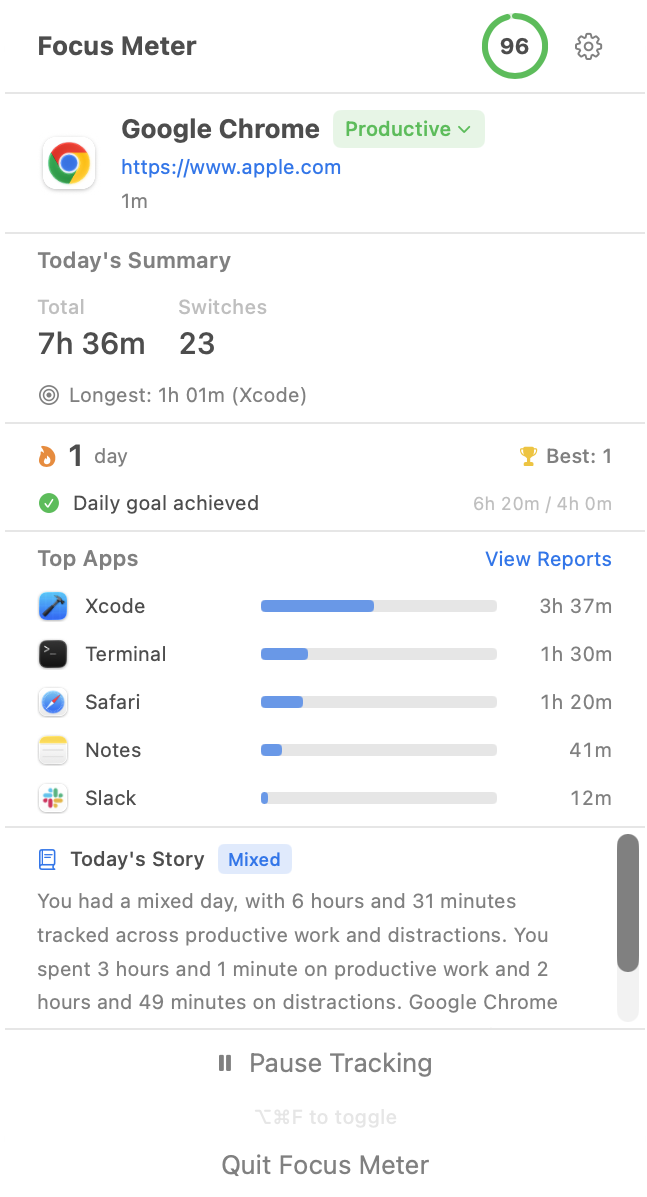
After a few minutes, click the Focus Meter icon in the menu bar. You'll see a popover dashboard showing:
- The app you're currently using and how long you've been in it
- Quick stats for the day (tracked time, app switches, longest focus stretch)
- A list of your top apps so far
If you are setting this up for a specific workflow, the developer guide, browser usage guide, and app usage tracking comparison show more concrete examples.
Categorize Your First App
You'll notice a colored badge next to the current app name (like Neutral or Uncategorized). Tap it to change the category. You can also tune categories later from Settings and Privacy:
- Productive: work you want to be doing (your editor, documents, design tools)
- Distraction: things that pull you away (social media, news, games)
- Neutral: neither good nor bad (Finder, system utilities, messaging apps)
Why this matters: your Focus Score is calculated from these categories. The more time in Productive apps and the fewer app switches you make, the higher your score. Categorizing apps is the single most important thing you can do to make Focus Meter useful. For the deeper formula, read What Is a Focus Score?.
Focus Meter remembers your choices, so you only need to categorize each app once.
Check Your Focus Score
In the top-right corner of the popover dashboard, you'll see a colored number. That's your Focus Score for the day (0-100). Click it to see a breakdown of how it's calculated.
The score reflects three things:
- How much of your tracked time was in Productive apps
- How long your focus stretches were (longer is better)
- How often you switched between apps (less is better)
Don't worry if it's low on day one. You're still categorizing apps. It becomes more meaningful over a few days, especially once you review trends in Reports and Insights.
Optional: Enable Browser URL Tracking
By default, Focus Meter only tracks which app you're using. If you spend a lot of time in a browser, you can enable website-level tracking so it also records which sites you visit. The browser tracking guide explains why this matters for Chrome, Arc, Safari, and other browsers.
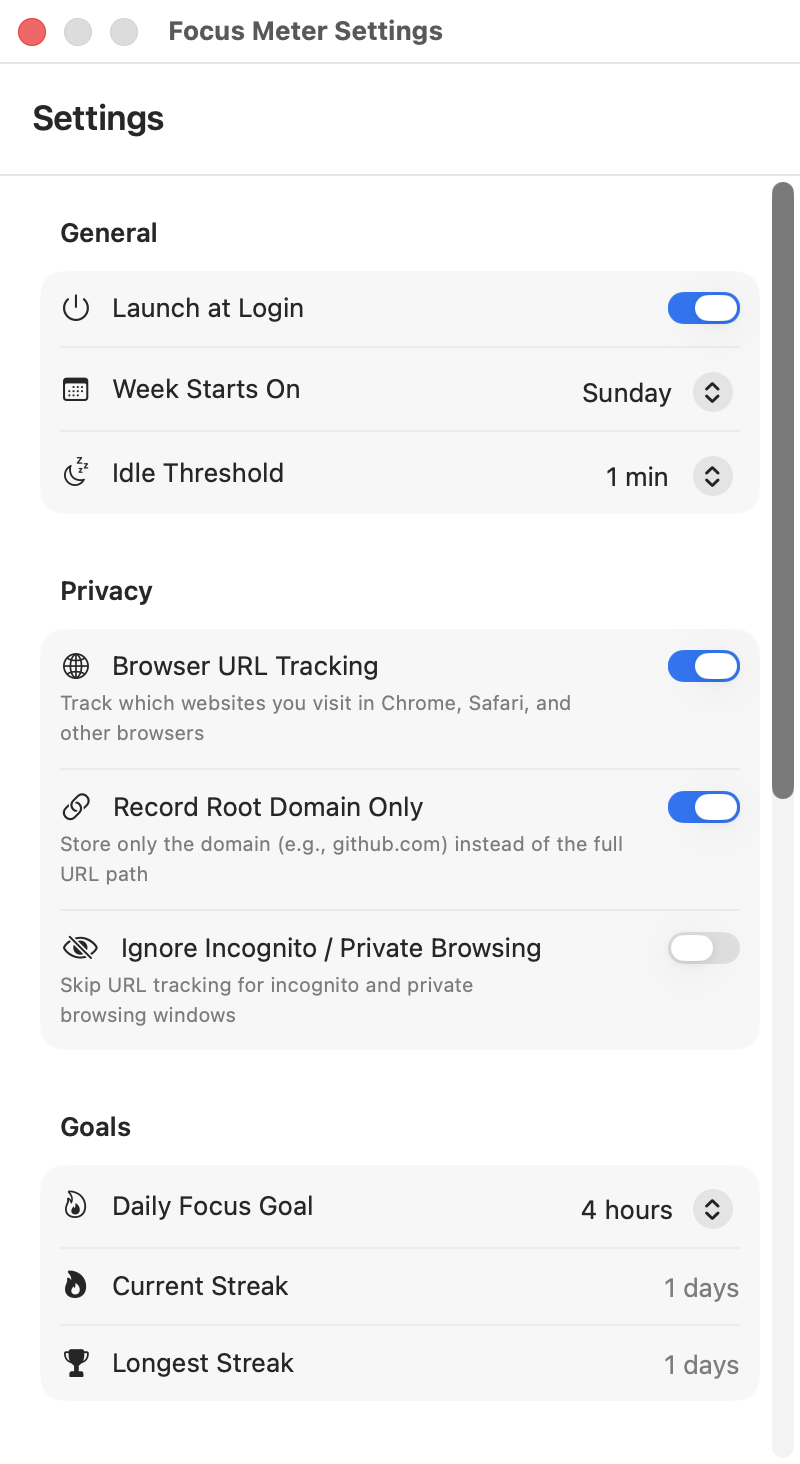
- Open Settings (gear icon in the popover header, or right-click the menu bar icon)
- Scroll to the Privacy section
- Turn on Browser URL Tracking
macOS will ask you to grant Automation permission for each browser you use. Click Allow when prompted.
This lets you categorize individual websites, so Chrome can be "Productive" when you're on docs.google.com but "Distraction" when you're on reddit.com. If Chrome is your main browser, the Chrome tracking page shows the same idea with examples.
Supported browsers: Safari, Chrome, Brave, Edge, Opera, and Arc.
Privacy note: URL data never leaves your Mac. If you want extra control, you can enable Record Root Domain Only (saves
github.cominstead of full page URLs) or Ignore Incognito / Private Browsing in the same Privacy settings. For a technical overview, read how Focus Meter stores your data.
The Right-Click Menu
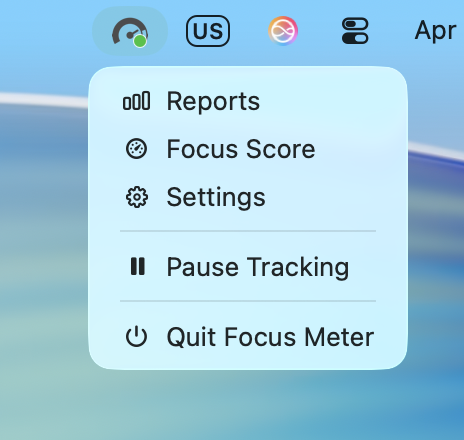
Right-click (or Control-click) the menu bar icon for quick access to:
- Reports: open the full reports window
- Focus Score: jump to the score breakdown
- Settings: open the settings window
- Pause / Resume Tracking: temporarily stop tracking without quitting
What to Do Next
- Use your Mac normally for a day or two. The data gets more interesting with time.
- Categorize apps as they appear. You'll quickly build up a complete picture.
- Check your Focus Score at the end of the day to see how it went.
- Open Reports after a few days to see your first trends.
When you're ready to go deeper, read Your Dashboard to learn what each section of the popover tells you.
Related Guides
- Your Dashboard: understand the popover, live activity, quick stats, streaks, and top apps.
- Reports and Insights: review daily timelines, weekly summaries, trends, and focus patterns.
- Settings and Privacy: configure categories, browser URL tracking, idle detection, goals, and shortcuts.
- Export and Sharing: save CSV or JSON data, or create a weekly Focus Card.
- Troubleshooting: fix permissions, missing URLs, idle detection, menu bar visibility, and reset issues.