

Settings and Privacy
Focus Meter is designed to work well out of the box, but you can customize it to match how you work. Open Settings from the gear icon in the popover dashboard or by right-clicking the menu bar icon.
General
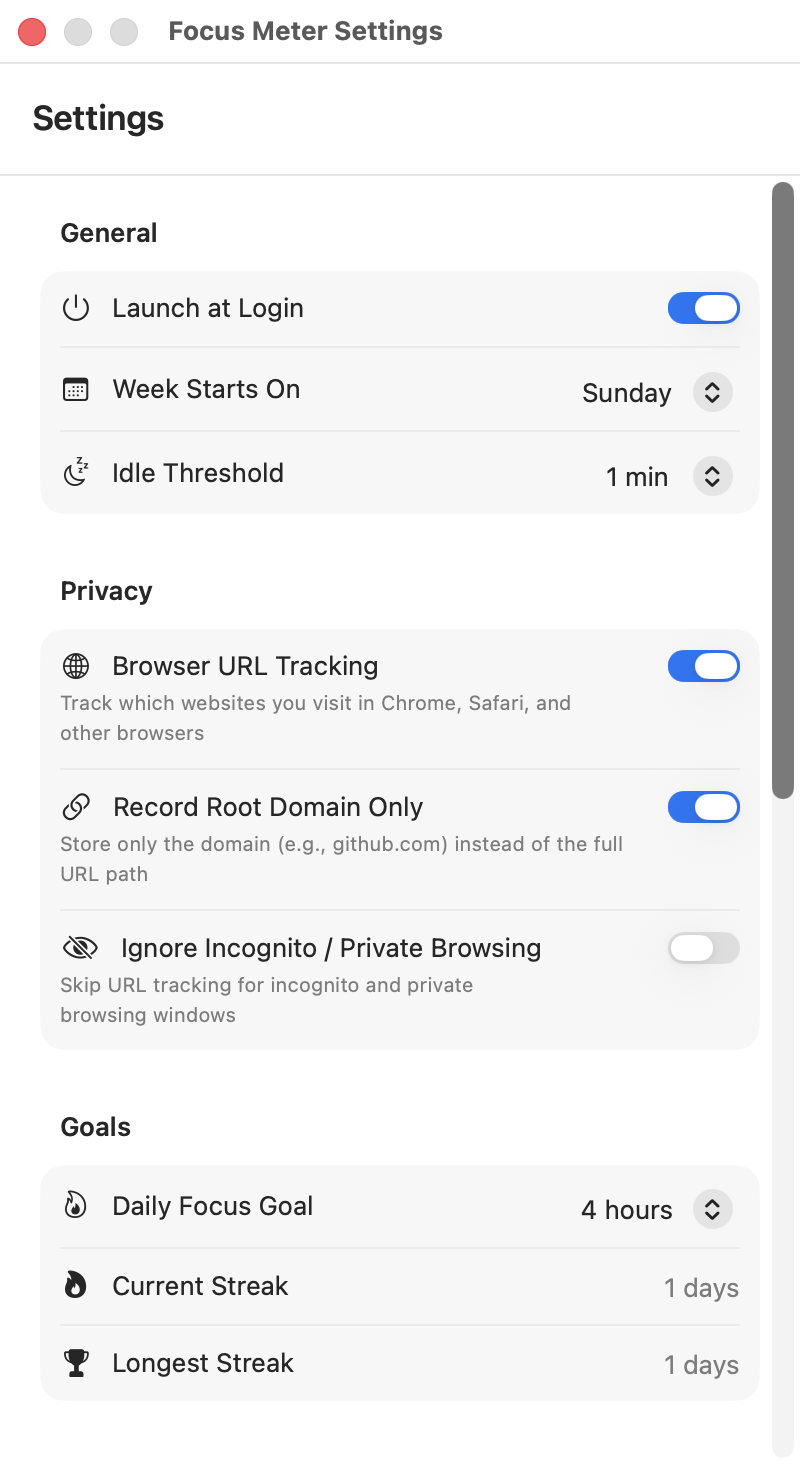
Launch at Login: Start Focus Meter automatically when you log in to your Mac. Recommended so you don't miss tracking time at the start of your day.
Idle Threshold: How long you need to be inactive (no keyboard or mouse input) before Focus Meter marks you as idle. Options: 1, 2, 5, 10, 15, or 30 minutes.
- The default is 5 minutes, which works well for most people.
- If you frequently read long documents, watch presentations, or review videos, consider raising this to 10-15 minutes so those activities aren't counted as idle.
- If you want tighter tracking and rarely step away from input, try 2 minutes.
Idle time is excluded from your tracked time and doesn't affect your Focus Score. If idle time still looks wrong in reports, use the idle checks in Troubleshooting.
Privacy
These controls let you decide how much detail Focus Meter records about your browsing.
Browser URL Tracking: When on, Focus Meter reads the current URL from your browser so it can track activity at the website level (e.g. "github.com" vs. just "Chrome"). When off, it only records the app name. The browser usage guide explains the setup across Arc, Chrome, Safari, and Firefox.
Record Root Domain Only: When on, Focus Meter saves github.com instead of github.com/your-org/your-repo/pull/123. Useful if you want site-level insights without recording specific pages. For a deeper privacy walkthrough, read how Focus Meter stores your data.
Ignore Incognito / Private Browsing: When on, Focus Meter skips URL recording when your browser is in a private/incognito window. The app switch itself is still tracked (it'll show as "Chrome" without a URL), but no website details are saved. If website URLs still do not appear, check the permission fixes in Troubleshooting.
All of your data stays on your Mac. Focus Meter doesn't have an account system, doesn't phone home, and doesn't send your tracking data anywhere. Reports, scores, and exports are all generated locally.
Goals
Daily Focus Goal: Set a target number of hours for productive tracked time each day. This drives the streak system and the progress bar in the popover dashboard.
Start with a realistic goal. If you typically get 4-5 hours of focused work in a day, try setting it to 4 hours and adjust from there. Setting it too high creates a streak that's hard to maintain and becomes discouraging.
Your current streak and longest streak are displayed here as well. Watch the trend over time in Reports and Insights.
Keyboard Shortcut
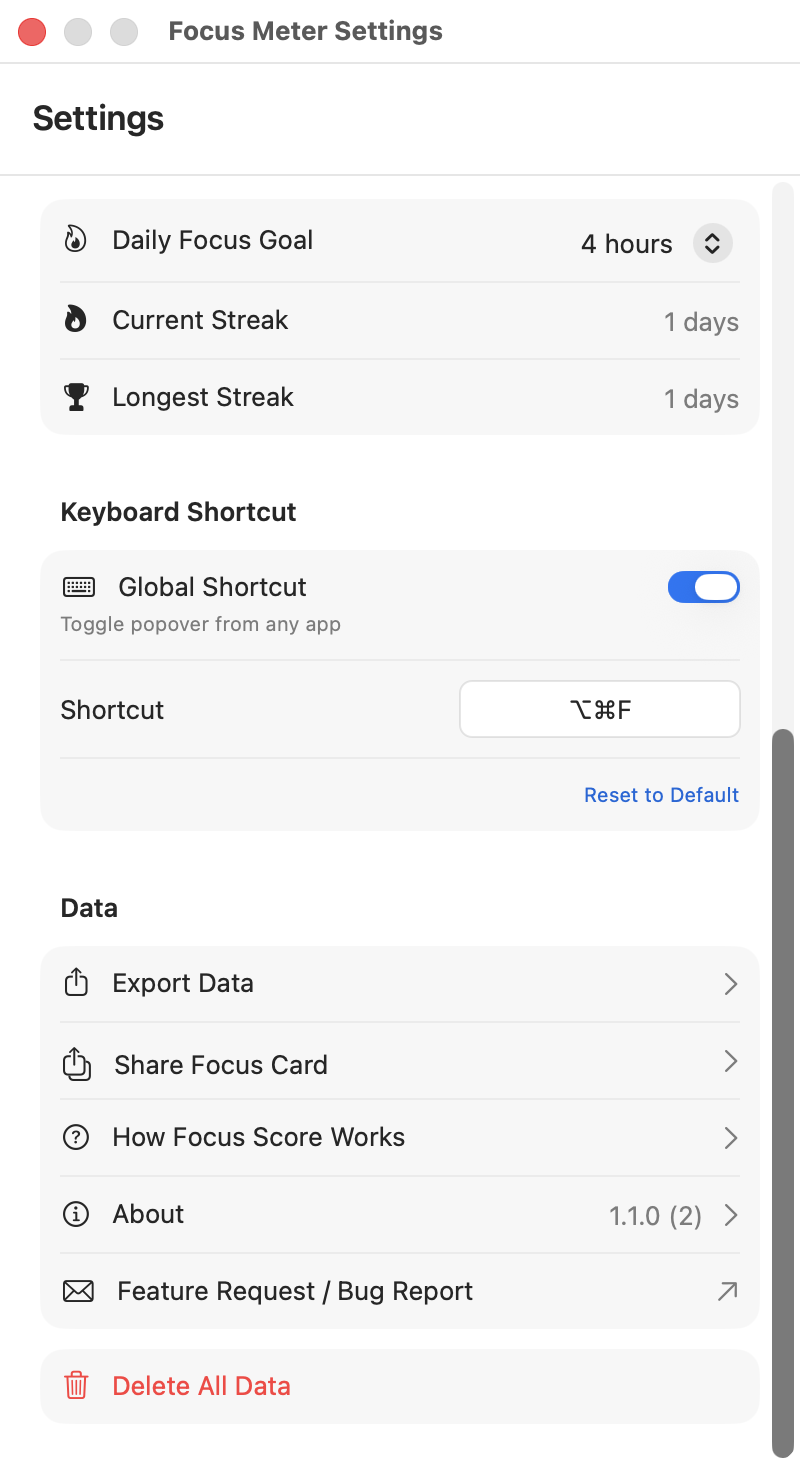
You can set a global keyboard shortcut to open/close the Focus Meter popover from anywhere, without clicking the menu bar icon.
- Enable/disable the shortcut with the toggle
- Record a new shortcut by clicking the recorder field and pressing your preferred key combination
- Reset to the default shortcut: Option + Command + F (⌥⌘F)
This is especially handy if you keep your menu bar crowded or use a notched MacBook where icons get hidden.
Data and Support
Export Data: Opens the export window where you can save your tracking history as CSV or JSON. See Export and Sharing for details.
Share Focus Card: Generate a visual summary card of your week. See Export and Sharing.
How Focus Score Works: Opens an explanation of the scoring formula and what affects it. The web version is What Is a Focus Score?.
About: Version info, acknowledgments, and privacy details. You can also read the public About page and Privacy Policy.
Feature Request / Bug Report: Links to the support page where you can share feedback or report issues.
Danger Zone
Delete All Data permanently erases all of your tracked history, categories, and streaks. This cannot be undone.
Use this if you want a completely fresh start: for example, after experimenting with categories and wanting to reset before tracking "for real." If there is any chance you will want the old history later, export your data first.
Related Guides
- Getting Started: configure the first useful settings after install.
- Your Dashboard: see where scores, goals, categories, and shortcuts appear during daily use.
- Reports and Insights: validate whether your settings are producing useful data.
- Export and Sharing: save data before major category changes or a full reset.
- Troubleshooting: repair permission prompts, missing URLs, idle detection, and menu bar issues.