

Your Dashboard
The popover that appears when you click the menu bar icon is your main view into Focus Meter. If you have not installed the app yet, start with Getting Started. If you already have a few days of data, pair this guide with Reports and Insights.
Header
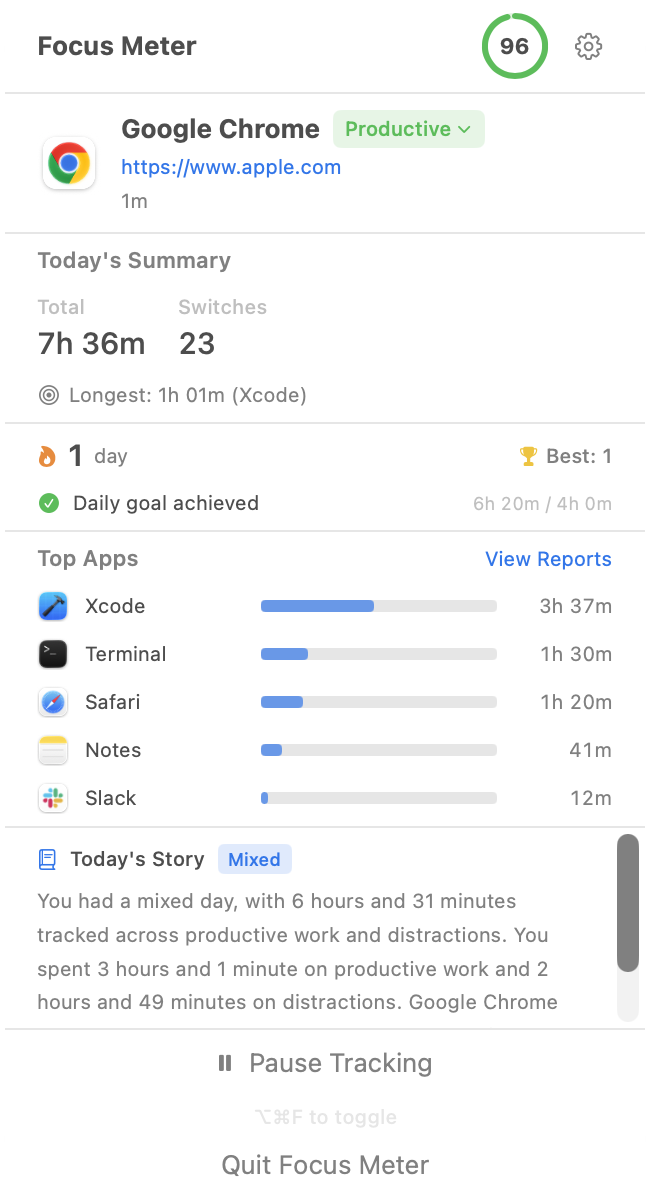
The top bar shows the Focus Meter title, your current Focus Score badge, and a gear icon for Settings.
Click the Focus Score badge to see a breakdown of how your score is calculated: productive time percentage, focus session length, and switch frequency. The scoring concepts are covered in more depth in What Is a Focus Score?.
Current Activity
This section shows what you're doing right now:
- App name and icon: the frontmost app on your Mac
- Website URL: if browser tracking is enabled, you'll see the current domain (e.g.
github.com). If the browser is in Incognito/Private mode and you've chosen to ignore private browsing, it shows "Incognito" instead. - Focus duration: how long you've been in this app without switching away
- Category badge: tap to change this app's category (Productive, Distraction, or Neutral)
If browser tracking is on but the permission hasn't been granted yet, you'll see a Grant URL access link here. Click it to trigger the macOS permission prompt (or open System Settings if you previously denied it). If the prompt does not return, use the steps in Troubleshooting.
Tip: The focus duration resets every time you switch to a different app. If you're trying to build longer focus stretches, keep an eye on this number. It's a live reminder of how long you've stayed put. The cost of this switching pattern is explained in The Real Cost of Context Switching.
Focus Session Banner
If you've started a focus session (via the companion CLI), a banner appears showing:
- That a session is active
- The project name (if you set one)
- Time remaining (for timed sessions)
This banner only appears during active sessions: you won't see it during normal use. For passive tracking without manual sessions, see How To Set Up Automatic Focus Tracking on Mac in 60 Seconds.
Quick Stats
Three numbers that summarize your day so far:
- Tracked time: total time Focus Meter has been actively recording (excludes idle and paused time)
- Switches: how many times you moved between different apps
- Longest focus: your best uninterrupted stretch in a single app today
Tip: A high switch count relative to tracked time usually means you were bouncing between apps. If you notice this pattern, try closing or minimizing distracting apps during your next work block. The deep work tracker guide shows how to use these numbers without starting timers.
Streak
Your streak tracks consecutive days where you met your daily focus goal:
- Current streak: how many days in a row you've hit your goal
- Longest streak: your personal best
- Today's progress: a progress bar showing how close you are to today's goal
You can change your daily goal in Settings > Goals.
Top Apps
A ranked list of your most-used apps today, showing each app's duration and share of your total time. Click View Reports to see the full breakdown.
Tip: If an app you don't recognize appears here, it might be a background utility that briefly became the frontmost window. You can categorize it as Neutral so it doesn't affect your score. If you need app-specific examples, browse the app tracking hub.
Today's Story
Once you have enough activity for the day, Focus Meter generates a short natural-language summary: something like "You spent most of your morning in Xcode with a long focus stretch before lunch, then switched frequently between Slack and Chrome in the afternoon."
This section appears automatically when there's enough data to summarize. To understand those patterns by role, compare the developer guide, designer guide, or the broader profession hub.
Footer
At the bottom of the popover:
- Pause / Resume Tracking: temporarily stops recording without quitting the app. Useful for breaks, personal time, or anything you don't want tracked.
- Global hotkey hint: if you've set up a keyboard shortcut in Settings, it's shown here as a reminder.
- Quit Focus Meter: fully closes the app.
Related Guides
- Getting Started: install the app, classify your first apps, and enable browser URL tracking.
- Reports and Insights: turn dashboard snapshots into daily, weekly, and monthly trends.
- Settings and Privacy: adjust categories, goals, idle detection, URL tracking, and shortcuts.
- Troubleshooting: fix permission prompts, missing website URLs, and menu bar issues.